
What Is Canva's AI Video Generator and Why It Matters in 2026
Canva has spent years dominating the graphic design space for non-designers. Now it is making a serious push into AI video — and the timing is significant. As standalone video AI tools like Runway Gen 4.5 and Kling AI compete for professional users, Canva is betting on a different angle: meet creators where they already work.
The result is an AI video generator built directly into the world's most-used design platform, powered by Google Veo 3 — Google DeepMind's third-generation video model. This is not a lightweight gimmick. Veo 3 is the same model powering Google's own flagship video tools, which means Canva users are accessing state-of-the-art generation quality without leaving their existing workflow.
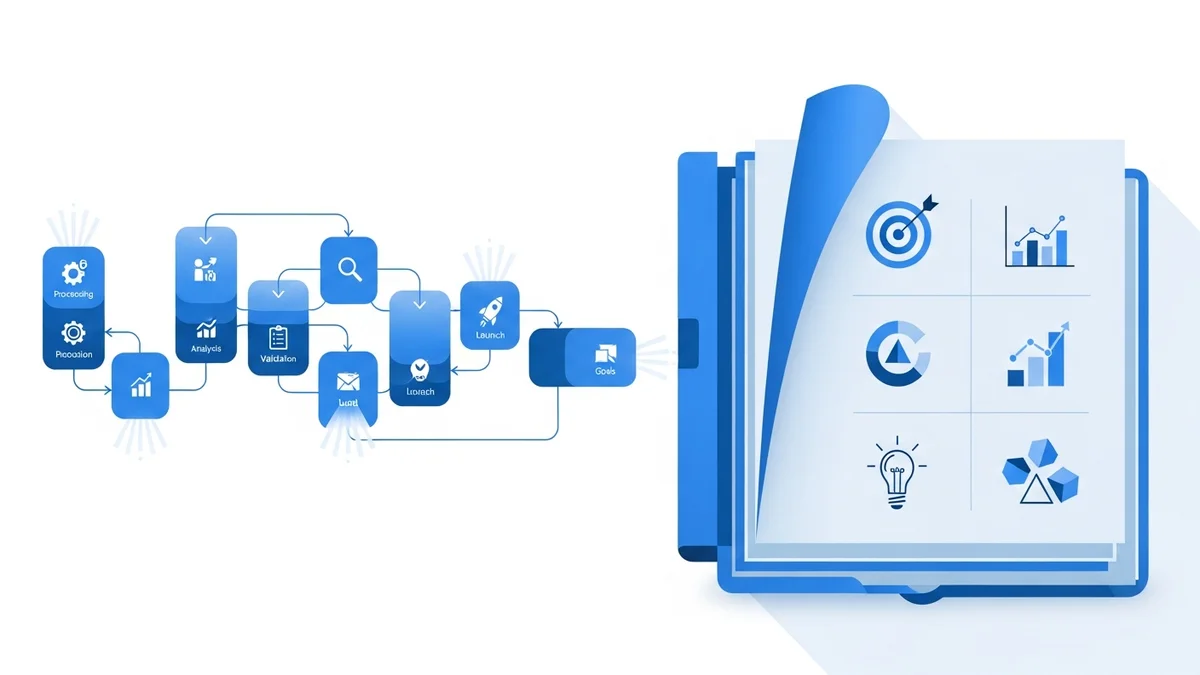
For social media managers, small business owners, and content creators who already live inside Canva, this matters enormously. You no longer need to export a design, open a separate tool, generate a clip, download it, and re-import it. The entire pipeline lives in one place.
Core Features of Canva AI Video Generator
Text-to-Video with Google Veo 3
The flagship feature is text-to-video generation. Write a descriptive prompt — say, "a barista pouring latte art in a warm cafe, golden hour lighting, cinematic" — and Canva generates a clip up to eight seconds long. That clip includes automatically synced audio, which sets Canva apart from most competitors in this price bracket. Tools like Pika Labs charge separately for audio generation or do not include it at all.
You can access text-to-video in two ways. From the Canva home page, you get a chat-style interface where you type prompts and refine results through conversation — similar to how ChatGPT handles iterative requests. From inside the template editor, access it via the Elements tab, where the generated clip drops directly into your existing project. This second workflow is especially powerful: you can replace a specific clip in a multi-scene video without rebuilding anything around it.
Magic Media Style Reference
Introduced as part of Canva's mid-2025 updates, Magic Media style reference solves one of the biggest pain points in AI content creation: visual consistency. Upload a reference image — your brand photography, a previous campaign asset, anything — and every new AI-generated image or video clip will match its style automatically. For anyone running a social media campaign across 10+ posts, this is a genuine workflow saver.
Integrated Video Timeline Editor
Canva's video editor has received significant quality-of-life improvements. A new audio button sits directly on the video timeline, eliminating the old menu-hunting process. Once you select an audio track, it pins to the sidebar for fast access on future projects. Combined with trim tools, transitions, and text overlays that have been part of Canva for years, you get a capable lightweight editing suite without touching software like Premiere or DaVinci Resolve.
Customizable Design Elements for Video
Canva's 2026 updates added expanded shape customization — rounded corners, adjustable sides, polygon controls — all relevant to lower-third graphics, motion captions, and animated overlays that sit on top of video clips. The expanded default color palette (with named swatches) means your brand colors stay consistent whether you are designing a static post or a video end card.
LinkedIn Ads Integration
A notable 2025 addition: Canva now connects directly to LinkedIn Ads. You design your video ad inside Canva and push it live without downloading and re-uploading through LinkedIn's ad manager. For B2B marketers running video campaigns, this removes two to three manual steps from every deployment cycle.
Canva Video Pricing in 2026
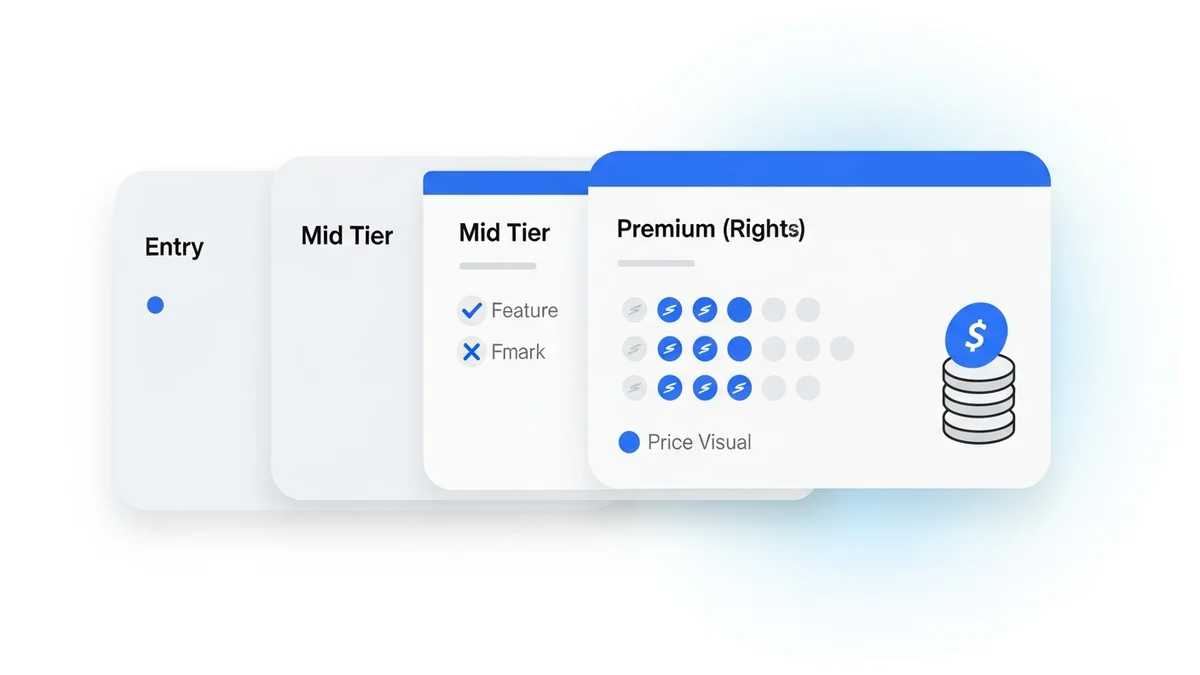
Canva's pricing structure is straightforward, though AI video credits add a layer of complexity worth understanding before you commit.
| Plan | Monthly Cost | Annual Cost | AI Video Access | Best For |
|---|---|---|---|---|
| Canva Free | $0 | $0 | Limited AI credits (50 lifetime) | Casual testing only |
| Canva Pro | $15/month | $120/year ($10/month) | 500 AI credits/month | Solo creators, freelancers |
| Canva Teams | $10/user/month | $100/user/year | 500 AI credits per seat/month | Small teams, agencies |
| Canva Enterprise | Typically $30+/user/month | Custom | Expanded credits + admin controls | Large organizations |
Newsletter
Get the latest SaaS reviews in your inbox
By subscribing, you agree to receive email updates. Unsubscribe any time. Privacy policy.
Each AI video generation costs between 5 and 10 credits depending on length and quality settings, meaning a Pro subscriber gets roughly 50 to 100 video clips per month. For light social media use this is adequate. For agencies or creators publishing daily video content, the credit cap becomes a real constraint — at which point dedicated tools like Luma Dream Machine or Runway Gen 4.5 offer better value on a per-generation basis.
Canva vs. Dedicated AI Video Tools: How It Stacks Up
Canva is not trying to replace professional video AI platforms. But understanding where it sits in the competitive landscape helps you decide whether it belongs in your stack — or whether you need something more powerful alongside it.
| Tool | Starting Price | Max Clip Length | Audio Generation | Editing Suite Included | Best Use Case |
|---|---|---|---|---|---|
| Canva Pro | $15/month | 8 seconds | Yes (auto-synced) | Yes (full design suite) | Social content + brand design |
| Runway Gen 4.5 | $15/month | 10 seconds | No (add-on) | Yes (video-focused) | Cinematic AI filmmaking |
| Kling AI | $10/month | 10 seconds | No | Basic | High-motion, realistic clips |
| Pika Labs | $8/month | 10 seconds | Paid add-on | Basic | Quick stylized social clips |
| HeyGen | $29/month | Custom | Yes (avatar speech) | Yes (avatar-focused) | AI spokesperson videos |
The key insight from this comparison: Canva wins on ecosystem, not raw video capability. If you need 60-second clips, camera motion control, or advanced prompt engineering for film-quality output, dedicated tools outperform it. But if you need a branded Instagram Reel with an AI-generated background, a lower-third graphic, your logo, and your brand colors — Canva does that in one session where other tools require three.
Actionable Workflow: Getting the Best Results from Canva Video
Write Cinematic Prompts, Not Descriptive Ones
The most common beginner mistake is writing prompts like "a dog running in a park." Veo 3 responds dramatically better to cinematography language. Try: "golden retriever sprinting across open grass, shallow depth of field, 35mm lens, late afternoon backlight, slow motion." Include camera direction, lighting condition, lens style, and mood. This is the same prompt framework that gets results from Google Veo 3.1 in standalone mode — the model is identical.
Use the Elements Tab for Template Integration
If you are building video content for a recurring series — weekly product showcases, tutorial intros, social ads — always generate from the Elements tab inside your template, not from the home page chat interface. This keeps your generated clips inside the template context, where they inherit your brand fonts, colors, and layout. The home page chat is better for exploration and experimentation when you do not have a template structure yet.
Anchor Style with Magic Media Reference
Before generating any AI clips for a campaign, upload one hero image as a style reference in Magic Media. This single step dramatically reduces the inconsistency problem that plagues AI-generated content series — where clip 1 looks warm and filmic while clip 5 looks flat and digital. Lock the style first, then generate.
Layer Audio Strategically
Canva generates audio synced to the video clip, but that audio is ambient and tied to the scene. For voiceover-driven content, mute the AI audio and add a separate recorded track or a royalty-free music bed from Canva's library using the new timeline audio button. The AI-generated ambient audio works best as a secondary layer under a music track — it adds texture without competing with your message.
Common Mistakes That Kill Your Canva Video Results
Mistake 1: Ignoring the 8-Second Limit in Content Planning
Creators plan a 30-second social video, then discover mid-project that each AI clip maxes out at 8 seconds, requiring four separate generations with potential style inconsistency between them. The fix: plan your video in 6-second narrative beats from the start. Each beat gets one generation. Use transitions and text overlays to bridge the cuts — this is exactly what Canva's editing tools are built for.
Mistake 2: Using Free Credits on Exploratory Prompts
Free plan users have 50 lifetime credits. Spending them on generic test prompts wastes the resource before you understand how the tool behaves. Instead, watch 15 minutes of prompt examples before generating anything. Save your first generations for actual content you intend to use.
Mistake 3: Treating Canva Video as a Standalone Tool
Canva video does not replace a purpose-built AI video platform for heavy production work. A creator who needs 50 unique video clips per week for a content agency will hit credit limits and capability walls. The right mental model: Canva is a video-capable design platform, not a video platform with design features. If video generation is your primary workload rather than one component of a broader creative process, evaluate Runway Gen 4.5 or Kling AI as your primary tool and use Canva for finishing and distribution.
Mistake 4: Skipping Brand Kit Setup
Canva Pro includes a Brand Kit where you store your logo, brand colors, and fonts. Creators who skip this setup spend time manually reapplying brand elements on every project. Set it up once, and every template — including video templates — automatically pulls your brand assets. This is particularly important when combining AI-generated clips with branded text overlays, which is the most common use case for marketing video.
Who Should Use Canva Video in 2026
Canva's AI video feature is the right choice for a specific user profile: someone who already uses Canva regularly for design work, creates video content for social media or marketing (rather than film or broadcast), and values workflow simplicity over maximum creative control.
It is especially strong for:
- Social media managers who need branded short-form video without a production budget
- Small business owners creating their own product or service videos
- Marketing teams that need visual consistency across large content libraries
- Educators and coaches building course thumbnails, intro clips, and promotional content
It is the wrong choice for:
- Creators who need clips longer than 8 seconds per generation
- Film and narrative content requiring precise camera control or multi-shot sequences
- Agencies generating more than 100 unique AI clips per month (credit economics break down)
- Avatar-based video where a presenter speaks to camera — for that, HeyGen or Synthesia are purpose-built
The strategic value of Canva video in 2026 is not that it is the most powerful AI video generator available — it is that it removes the friction of using a separate tool entirely. For creators whose primary output is designed social content with video components, that integration advantage compounds over time into a genuine productivity edge.