
What Is Wondershare Filmora and Who Is It For?
Wondershare Filmora is a cross-platform video editing software available on Windows, macOS, iOS, and Android. Since its launch, it has carved out a strong niche as the go-to editor for beginners and intermediate creators who want professional-looking results without spending months learning complex software like Adobe Premiere Pro or DaVinci Resolve.
In 2026, Filmora's appeal has only grown. The rise of short-form video content on platforms like TikTok, YouTube Shorts, and Instagram Reels has created a massive demand for fast, accessible editing tools. Filmora sits squarely in that sweet spot — affordable, feature-rich, and designed so a first-time editor can produce a polished video within hours of installing it.
Its user base spans content creators, vloggers, educators, and small business owners who need to produce video content regularly but don't have the budget or time to master enterprise-grade tools. If you've been comparing Filmora to AI-first platforms like Pictory or avatar-based tools like Synthesia, this guide will help you understand exactly where Filmora fits — and where it falls short.
Wondershare Filmora Pricing Breakdown
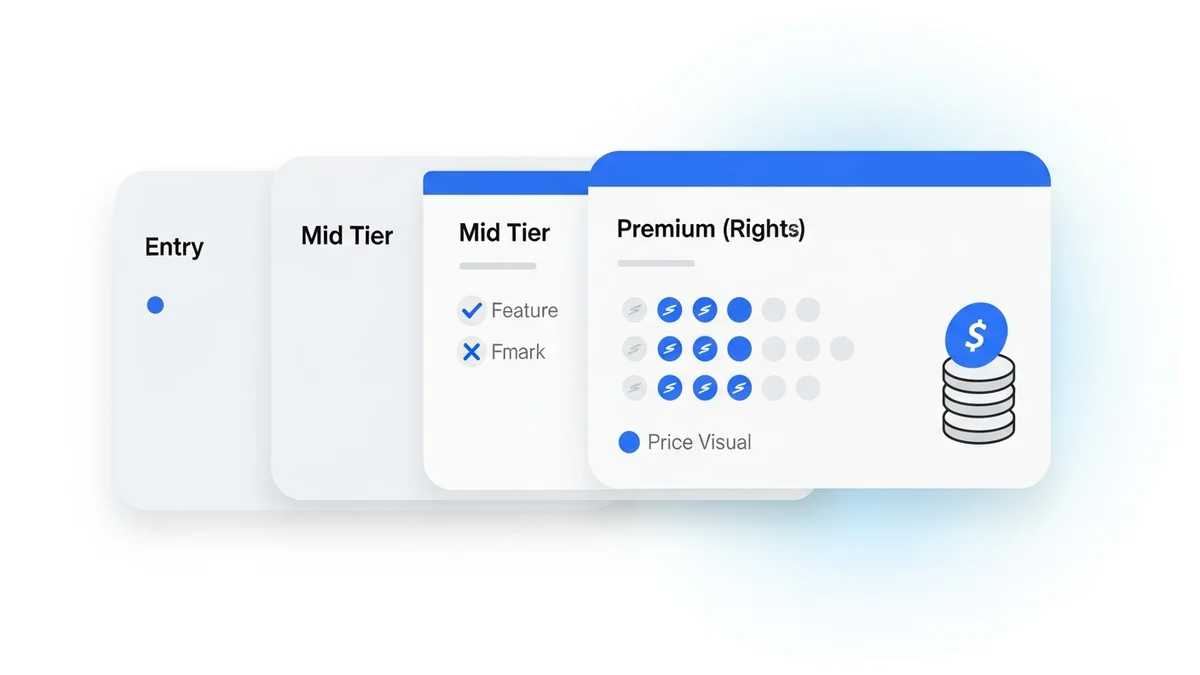
Filmora offers a free trial with full feature access, but all exported videos carry a visible watermark and you're limited to ten exports. Once you decide to commit, there are three paid tiers:
| Plan | Price | What You Get |
|---|---|---|
| Annual Plan | $49.99/year | No watermarks, unlimited asset downloads, 1 year of updates, senior tech support |
| Perpetual Plan | $79.99 one-time | Lifetime access to Filmora X, no ongoing subscription required |
| Bundle Subscription | Varies by package | Combines Filmora with other Wondershare products like Filmstock asset library |
At $49.99/year, Filmora is one of the most affordable full-featured desktop video editors on the market. For context, Adobe Premiere Pro costs $54.99/month — more than Filmora's annual fee in a single billing cycle. The perpetual license at $79.99 is particularly compelling for creators who want a one-and-done purchase with no recurring charges.
The free trial is genuinely useful for evaluating the software. The ten-export limit gives you enough room to test a real project before committing, which is a more honest trial than many competitors offer.
Wondershare Filmora: Full Pros and Cons Analysis
The Pros
- Intuitive, modern interface: Filmora's drag-and-drop timeline is clean and logically organized. New users consistently report being able to complete their first edit within an hour. The layout mirrors professional editors enough to teach transferable skills, but strips away the complexity that causes beginners to abandon other tools.
- Extensive creative asset library: Filmora ships with thousands of transitions, filters, overlays, and effects. For creators who don't have the time to build custom motion graphics from scratch, this library is a genuine time-saver. You can find a polished look for almost any genre — travel vlogs, corporate presentations, gaming content, and social media shorts.
- AI-powered tools built in: Filmora has been aggressive about integrating AI features. Current AI tools include auto captions, AI audio denoise, Smart Scene Cut, and an AI image remover. These features would typically require separate software subscriptions, making Filmora's all-in-one approach strong value.
- Affordable pricing: As detailed above, $49.99/year or $79.99 one-time is hard to beat for a desktop editor with this feature set. For solo creators and small teams, the budget case for Filmora is compelling.
- Cross-platform availability: Filmora runs on Windows, macOS, iOS, and Android with cloud syncing options. This is meaningful for creators who start editing on mobile and finish on desktop, or who work across multiple devices.
- 4K export support: Filmora supports 4K resolution export across multiple aspect ratios, with direct sharing to social media platforms built in. For creators targeting YouTube or premium platforms, this removes a workflow step.
- Solid community rating: Filmora holds a 4.5/5 rating on Capterra across 312 reviews — a reliable signal of consistent user satisfaction, not just marketing claims.
- Generally snappy performance: On hardware that meets its requirements, Filmora performs well in real-time playback and rendering. For casual to intermediate projects, stuttering and lag are uncommon.
Newsletter
Get the latest SaaS reviews in your inbox
By subscribing, you agree to receive email updates. Unsubscribe any time. Privacy policy.
The Cons
- No motion tracking: This is a significant gap. Motion tracking — attaching text, graphics, or blur effects to a moving subject — is a standard feature in tools like DaVinci Resolve and even some mid-tier editors. Its absence in Filmora limits what's possible for creators doing product reviews, tutorials, or any content requiring pinned overlays.
- Interface is not touch-friendly: On Windows tablets or hybrid devices, Filmora's interface doesn't adapt well to touch input. This is a frustration for creators who edit on the go using touchscreen hardware.
- No search tool for transitions or effects: With thousands of assets in the library, the lack of a search function is a real usability problem. Finding a specific transition type or effect style requires manual browsing through categories, which wastes time on longer projects.
- Only one clip at a time in Cutter and Action Cam modes: The specialized editing modes are limited in how many clips they can handle simultaneously. This restricts multi-camera editing workflows, a feature that more advanced users will quickly run into.
- No DVD menu or chapter authoring: For educators or businesses distributing content on physical media or structured video packages, this is a notable omission. Filmora is clearly optimized for digital and streaming delivery.
- 4K editing requires strong hardware: Smooth 4K editing requires at least 16GB RAM and a dedicated graphics card. Users on older or budget laptops will experience performance issues with high-resolution footage.
Filmora vs. AI Video Generators: Understanding the Difference
One of the most common mistakes creators make in 2026 is conflating traditional video editors like Filmora with the new generation of AI video generators. They serve fundamentally different purposes, and choosing the wrong tool for your workflow is a costly error.
Filmora is a video editing tool — it works with footage you already have. You import clips, arrange them on a timeline, add effects and audio, and export a finished video. The AI features inside Filmora (captions, denoise, scene cut) assist the editing process but don't generate video from scratch.
AI video generators like Runway Gen 4.5 or Luma Dream Machine create video content from text prompts or images with no source footage required. Tools like HeyGen generate avatar-based talking head videos for marketing and training without a camera. These are entirely different use cases.
The mistake creators make: buying Filmora expecting it to generate content, or buying an AI generator expecting it to replace a timeline editor. The answer for most professional workflows is both — use an AI generator for raw content creation and Filmora (or a similar editor) for post-production polish.
Who Should Use Filmora and Who Should Look Elsewhere
Filmora Is the Right Choice If:
- You're a beginner or intermediate editor who films your own content and needs a fast, affordable editing workflow
- You produce YouTube videos, vlogs, social media content, or educational videos from real footage
- You want AI-assisted editing features (captions, denoise, scene detection) without paying for separate tools
- You're on a tight budget and need a perpetual license — $79.99 one-time is exceptional value
- You work across desktop and mobile and need cross-platform continuity
Look Elsewhere If:
- You need motion tracking — DaVinci Resolve (free tier available) or Adobe Premiere Pro are stronger options
- You need multi-camera editing — Final Cut Pro or Premiere Pro handle multi-cam workflows properly
- You want AI-generated video without filming anything — consider Pika Labs for cinematic AI video generation or Kling AI for high-fidelity motion synthesis
- You need avatar presenters for corporate training — D-ID or Synthesia are purpose-built for that use case at a different price point
- You work with 4K footage on a budget laptop — Filmora's 4K performance requires capable hardware you may not have
Common Mistakes When Using Wondershare Filmora
Mistake 1: Ignoring System Requirements Before Purchase
The most avoidable mistake is skipping the system requirements check. Filmora for 4K editing needs at least 16GB RAM and a dedicated GPU. A creator editing 4K drone footage on a 4-year-old laptop with 8GB RAM will face choppy playback, long render times, and potential crashes. Check your specs before downloading — the free trial will expose this problem before you spend a dollar.
Mistake 2: Relying on the Free Trial Without Testing Export Quality
The free trial limits you to ten exports and adds a watermark. Some creators use all ten exports on test clips and never evaluate the actual output quality that matters for their use case — 4K resolution, specific aspect ratios, or direct social media upload quality. Spend your trial exports on real representative projects, not throwaway tests.
Mistake 3: Choosing Filmora When You Actually Need an AI Generator
As discussed above, this is a fundamental workflow mismatch. If your goal is generating video content from text prompts, scripts, or static images — for product ads, explainer videos, or AI avatar presentations — Filmora won't do it. Tools like Sora 2 for high-fidelity AI video generation or Google Veo 3.1 for cinematic AI output are the correct tools for that workflow, with Filmora potentially serving as the post-production layer after generation.
Mistake 4: Buying the Annual Plan Before Evaluating the Perpetual Option
Many creators default to subscription pricing out of habit. For Filmora, the perpetual license at $79.99 pays for itself after just 19 months compared to the annual plan. Unless you specifically need guaranteed access to major new version upgrades, the perpetual license is the better deal for most solo creators.
Mistake 5: Not Using the AI Features That Are Already Included
A significant portion of Filmora users pay for third-party caption tools or audio cleanup software without realizing Filmora already includes auto captions and AI audio denoise. Review the full feature list after installation — you may be able to consolidate tools and reduce subscription costs elsewhere in your stack.
Final Verdict: Is Wondershare Filmora Worth It in 2026?
For its target audience — beginner to intermediate creators editing real footage on a budget — Wondershare Filmora earns its 4.5/5 Capterra rating. The combination of an intuitive interface, a deep asset library, built-in AI tools, and one of the lowest price points in its class makes it a strong default recommendation for this use case.
The cons are real but mostly affect specific advanced workflows. If you don't need motion tracking, multi-camera editing, or DVD authoring, Filmora's limitations won't affect your day-to-day work. The lack of a searchable effects library is genuinely frustrating at scale, but manageable for most projects.
The more important decision is whether Filmora is the right category of tool for your workflow at all. In 2026, the video creation landscape splits clearly between traditional editors (where Filmora competes) and AI video generators (where it does not play). Understanding that distinction — and potentially combining both in your workflow — will determine whether Filmora becomes a central tool in your stack or a purchase you'll regret within a month.
At $79.99 for a perpetual license, the risk of trying Filmora is low. At $49.99/year, it remains one of the best-value subscriptions available for content creators working with real footage.