
What Is Kapwing and Why It Matters in 2026
Kapwing is a browser-based video editing platform designed for content creators, marketers, educators, and social media managers who need to produce polished videos without installing desktop software. With over 1.3 million users creating projects on Kapwing every month, it has become one of the most widely adopted online video editors available today.
The platform sits at an interesting intersection: it is not a pure AI video generator like Sora 2 or Runway Gen 4.5, but it integrates AI-powered tools into a full editing workflow. This makes it particularly useful for creators who want to take existing footage and rapidly transform it into platform-optimized content — rather than generating video from scratch with a text prompt.
In 2026, with TikTok reaching an estimated 1.88 billion monthly active users and Instagram redesigning its interface to center Reels, the demand for fast, multi-format video production has never been higher. Kapwing is built to serve exactly that workflow.
Core Kapwing Features Explained
AI Auto-Edit (Smart Cut)
The Auto-Edit tool — also called Smart Cut — is Kapwing's flagship AI feature. It automatically scans your uploaded footage and removes silences, filler words ("um," "uh," "like"), and bad takes. This is one of the most time-consuming parts of editing talking-head videos, tutorials, and podcast clips, and Smart Cut handles it without frame-by-frame manual trimming.
The workflow is straightforward: upload your clips, arrange them on the timeline, click the Transcript tab to auto-generate a full transcript, then open the Smart Tools menu and select Auto-Edit. The editor will cut the video at the transcript level — meaning you can delete a sentence in the transcript and the corresponding video segment is removed automatically.
Transcript-Based Editing
Beyond Auto-Edit, Kapwing's transcript editor lets you treat your video like a text document. This is particularly valuable for repurposing long-form content: you can identify key quotes, cut them into standalone clips, and export them as short-form videos for TikTok or Reels — all from a single transcript view.
Aspect Ratio Resizing and Format Optimization
One of Kapwing's most practical features is its one-click aspect ratio resizing. In 2026, the two dominant ratios are:
- 9:16 vertical — Required for TikTok, Instagram Reels, and YouTube Shorts
- 16:9 horizontal — Standard for YouTube long-form and LinkedIn video
Kapwing lets you export a single project in multiple formats, which solves one of the most common content production bottlenecks: re-editing the same video four times for four different platforms. YouTube Shorts now supports videos up to 3 minutes long, expanding the use case for vertical resizing beyond 60-second clips.
Auto-Subtitle Generator
Kapwing generates subtitles automatically from audio using AI transcription. Subtitles are no longer optional — they are a baseline requirement for social video, as a large share of mobile viewers watch without sound. The tool supports styling, font customization, and timing adjustments directly in the editor.
Kai — Kapwing's AI Assistant
Kai is Kapwing's built-in AI assistant that helps with tasks like generating video scripts, writing captions, suggesting cuts, and creating AI-powered video content from text prompts. It brings generative AI directly into the editing workflow rather than requiring a separate tool for idea generation and scripting.
Platform-Specific Video Specifications Kapwing Handles
Understanding the exact specs for each platform is critical to avoid rejected uploads, cropped content, or poor display quality. Kapwing's resizing tools are built around these specs. Here is a reference table for the major platforms in 2026:
| Platform | Format | Recommended Aspect Ratio | Max Length (Shorts/Reels) |
|---|---|---|---|
| YouTube (long-form) | Horizontal | 16:9 | No limit |
| YouTube Shorts | Vertical | 9:16 | 3 minutes |
| TikTok | Vertical | 9:16 | 10 minutes |
| Instagram Reels | Vertical | 9:16 | 90 seconds |
| Instagram Feed | Square or Portrait | 1:1 or 4:5 | 60 seconds |
| Horizontal or Square | 16:9 or 1:1 | 10 minutes |
Newsletter
Get the latest SaaS reviews in your inbox
By subscribing, you agree to receive email updates. Unsubscribe any time. Privacy policy.
Kapwing handles black padding automatically for non-standard ratios — for example, if you upload a 4:3 video and export for YouTube's 16:9 standard, it fills the sides. However, for the best visual result, Kapwing recommends always targeting 16:9 or 9:16 natively rather than relying on padding.
Kapwing Pricing Breakdown
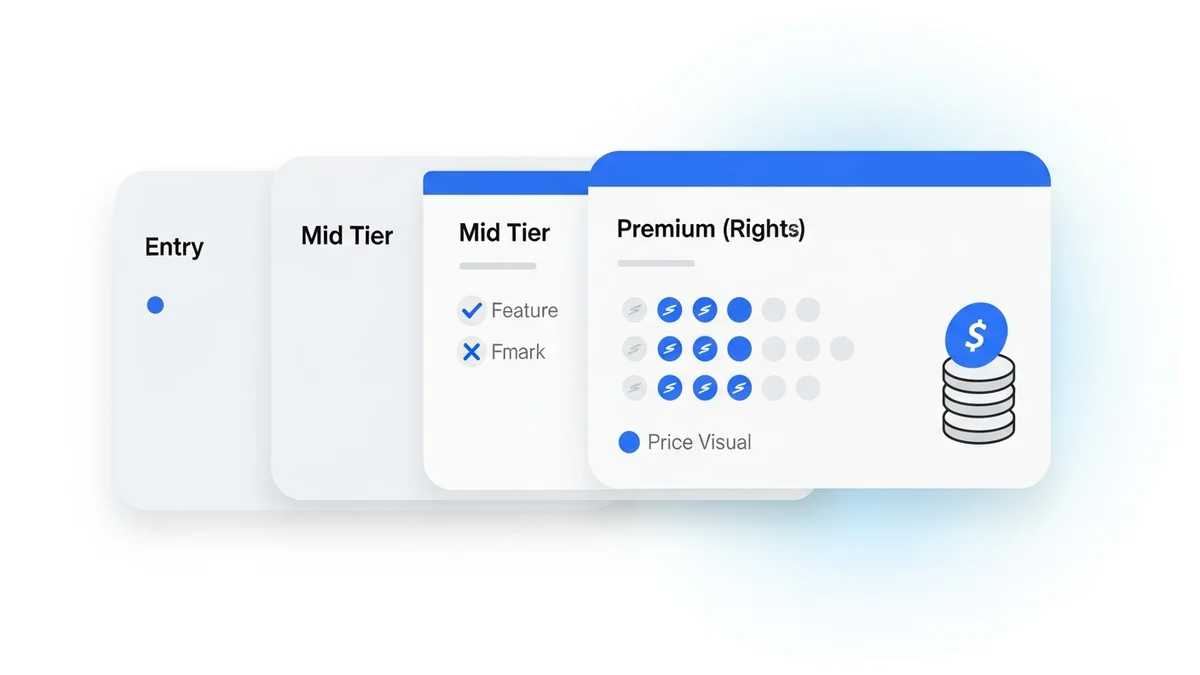
Kapwing uses a tiered SaaS pricing model. The free tier is functional but limited — exported videos include a watermark and are capped at a lower resolution. Here is an overview of the plan structure as of 2026:
| Plan | Price | Key Limitations / Features | Best For |
|---|---|---|---|
| Free | $0/month | Watermark on exports, limited export resolution, 250MB storage | Occasional personal use, testing the tool |
| Pro | ~$16/month (billed annually) | No watermark, 1080p exports, 100GB storage, full AI tools | Solo creators, freelancers, small business |
| Business | ~$50/month per user (billed annually) | Brand kits, team collaboration, priority exports, advanced AI features | Marketing teams, agencies, multi-person workflows |
| Enterprise | Typically $500+/month | Custom storage, SSO, dedicated support, SLA guarantees | Large organizations with compliance needs |
The Pro plan is the realistic entry point for any creator who publishes regularly, as the watermark on the free tier makes it unsuitable for professional or branded content.
Kapwing vs. AI Video Generators: When to Use Which
Kapwing is an editor first. It does not generate video from text prompts the way Luma Dream Machine or Kling AI does. This distinction matters for how you position it in your production stack.
Use Kapwing when:
- You have existing footage (screen recordings, talking-head videos, interviews) that needs editing, trimming, and formatting
- You need to repurpose long-form content into short-form clips at scale
- You want to add subtitles, captions, or branded text overlays without a complex timeline editor
- You are working collaboratively in a team and need shared workspaces
Use a dedicated AI video generator when:
- You need to create video from a text prompt with no source footage
- You want AI-generated avatars and lip-synced presenters — tools like HeyGen or Synthesia are purpose-built for this
- You need photorealistic video generation for commercial productions
For most content workflows in 2026, the answer is to use both: generate raw content with an AI video tool, then bring it into Kapwing for editing, resizing, captioning, and platform formatting.
Common Mistakes When Using Kapwing
Mistake 1: Exporting in the Wrong Aspect Ratio
The most frequent error is shooting or editing in 16:9 horizontal, then uploading that video to TikTok or Instagram Reels. The platform either crops the sides to fit a 9:16 container — cutting off important visual information — or adds black bars that make the video look unpolished. Always set the canvas ratio in Kapwing before you begin editing, not as an afterthought at export.
Mistake 2: Skipping the Auto-Edit Step
Creators who skip the Smart Cut tool end up manually scrubbing through footage to find and remove silences. On a 20-minute raw recording, this can add 45–90 minutes to the edit. Auto-Edit can reduce that to under 5 minutes. The error is not distrust of the tool — it is simply not knowing the feature exists in the Transcript tab.
Mistake 3: Using the Free Plan for Brand Content
Publishing content with the Kapwing watermark on professional or branded videos is a credibility issue. A startup founder posting a product demo with a visible "Made with Kapwing" watermark signals to potential customers that the brand is not investing in its own presentation. At roughly $16/month on the annual Pro plan, removing the watermark is a minimal cost relative to the brand impression it protects.
Mistake 4: Treating Kapwing as a Full AI Video Generator
Some users expect Kapwing to generate entirely new video from text descriptions in the way Pika Labs or Google Veo 3.1 does. Kapwing's AI features (Kai, Auto-Edit, transcription) augment editing of existing footage — they do not conjure video from a prompt. Setting the right expectations before onboarding prevents frustration and wasted trial time.
Mistake 5: Ignoring Platform-Specific Time Limits
YouTube Shorts expanded its maximum video length to 3 minutes in a recent update, which many creators missed. As a result, creators were unnecessarily cutting content short or splitting videos that could have been published in full. Kapwing's guides track these spec changes, but it is the creator's responsibility to check the current limits before finalizing an export.
Who Should Use Kapwing in 2026
Kapwing is best suited for a specific creator profile: someone who produces original talking-head content, tutorials, educational videos, or repurposed podcast clips, and needs to publish consistently across multiple platforms. The combination of transcript-based editing, Smart Cut, and multi-format export makes it a high-efficiency tool for this use case.
It is less suited for filmmakers, commercial video producers, or anyone whose primary need is generating novel visual content from scratch — those workflows belong to dedicated AI generation tools. Similarly, for avatar-based video production at scale, purpose-built platforms like Synthesia or D-ID offer deeper functionality in that specific category.
For the broad middle of the content creator market — educators, marketers, solopreneurs, and social media managers — Kapwing's browser-based, no-installation workflow and AI-assisted editing make it one of the most practical tools available. The 1.3 million monthly active creators figure is not incidental: it reflects a genuine product-market fit with the social video production workflow that now defines online content in 2026.