
What Is Wondershare Filmora and Who Is It For?
Wondershare Filmora is a desktop video editing application now at version 14, targeting content creators who want professional-quality output without the steep learning curve of tools like Adobe Premiere Pro or DaVinci Resolve. PCMag awarded it 4.0 out of 5 (Excellent), praising its blazing-fast render speeds, pleasant interface, and growing suite of AI-powered features at an affordable price point.
Unlike pure AI video generation tools such as Sora 2 or Runway Gen 4 5 that create footage from text prompts, Filmora operates as a traditional non-linear editor layered with generative AI tools. If you already have footage — from a camera, screen recorder, or AI generator — Filmora is where you assemble, polish, and publish it.
The target audience is squarely YouTubers, podcasters, short-form social creators, and small business owners who need to produce consistent video content without hiring an editor or learning professional-grade software. With support for up to 100 video tracks, motion tracking, keyframing, and multicam editing, Filmora punches above its price class.
Filmora Pricing: Every Plan Broken Down
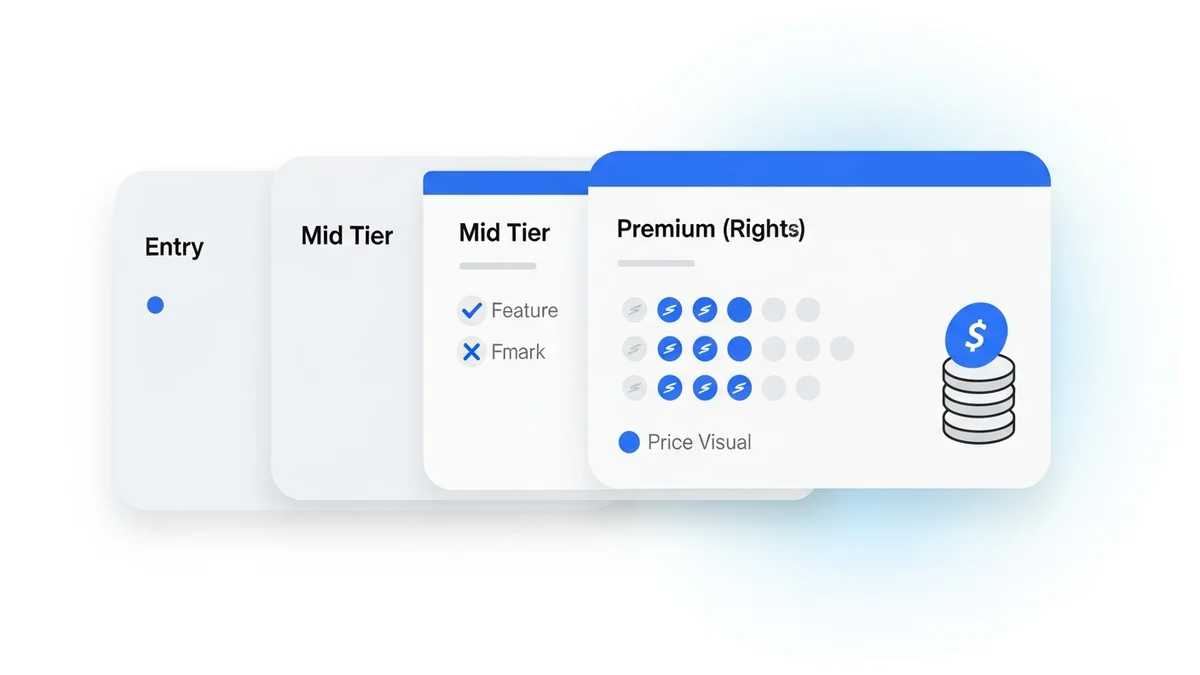
Filmora's pricing structure is tiered and worth understanding before you buy, because the cheapest plan lacks AI features entirely.
| Plan | Price | AI Credits/Month | Cloud Storage | Mobile Apps |
|---|---|---|---|---|
| Basic (Annual) | $49.99/year | 0 (purchased separately) | 1 GB | Yes |
| Perpetual License | $79.99 one-time | 1,000 (one-time) | 1 GB | No |
| Advanced (Annual) | $69.99/year | 1,000/month | 10 GB | Yes |
| Creative Assets Add-on | $19.99/month or $79.99/year | — | — | — |
Key insight: If you plan to use the AI features regularly — speech-to-text, lip sync, AI text-to-speech — the Advanced plan at $69.99/year is the only option that makes financial sense. The Basic plan at $49.99 leaves you without any AI credits, and buying them separately quickly adds up. For context, Adobe Premiere Pro costs $263.88/year, and CyberLink PowerDirector Ultimate runs $139.99 for perpetual access, making Filmora's Advanced tier genuinely competitive.
Core Editing Features: The Foundation
Before exploring AI capabilities, it's worth understanding the core editing toolset Filmora provides. These fundamentals matter because AI tools are only as useful as the editing environment around them.
Timeline and Track Management
Filmora supports up to 100 video tracks, which is more than most enthusiast editors need and enough for complex multi-layer productions. The magnetic timeline feature (introduced prominently in Filmora 14) automatically closes gaps when you delete clips, eliminating the manual ripple-edit step that slows down many beginner workflows.
Trimming and Clip Editing
The scissors tool splits clips at the playhead. You can trim the start and end points by dragging clip edges directly on the timeline. B-roll footage is added via drag-and-drop onto additional tracks, and audio levels for each track are independently adjustable — critical for podcast-style content where you need primary audio separate from background sound.
Titles, Transitions, and Effects
Filmora ships with a library of built-in title templates, animated transitions, and visual effects. Wondershare adds new effect collections monthly for subscribers — a meaningful ongoing value that static perpetual licenses miss. The Creative Assets add-on ($79.99/year) unlocks premium filters, stock footage, and templates for creators who need a deeper visual library.
Color Correction
The color correction panel covers brightness, contrast, saturation, and color temperature adjustments. You can apply presets for a quick look or fine-tune manually. While this doesn't approach the color science depth of DaVinci Resolve's node-based system, it's more than sufficient for social media and YouTube content where aggressive color grading is rarely necessary.
Export and Format Support
Filmora exports to H.265 (HEVC), which is important for maintaining quality at smaller file sizes — a practical concern when uploading to YouTube or storing projects in limited cloud storage. Export options include common formats, resolutions up to 4K, and direct sharing to social platforms.
Newsletter
Get the latest SaaS reviews in your inbox
By subscribing, you agree to receive email updates. Unsubscribe any time. Privacy policy.
Filmora 14's AI Features: What Actually Works
The most significant development in Filmora 14 is its expanded AI toolset. PCMag notes that "some AI features disappoint," but several genuinely accelerate workflows for the right use cases. Here's an honest breakdown.
Multicam Editing with Auto-Sync
This is one of Filmora's most practically useful AI features. Import multiple camera angles of the same scene, right-click, and select "Create Multicamera Clip." Filmora auto-syncs the footage by audio waveform — no manual alignment required. For podcast creators or interview-based YouTube channels shooting with two or three cameras simultaneously, this removes what was previously an hour of manual work. The multicam viewer then lets you click between angles in real time while the timeline records your cuts automatically.
AI Speech-to-Text and Lip Sync Translation
Filmora's speech-to-text generates captions and subtitles from dialogue automatically — a feature that saves significant time for YouTube creators required to provide closed captions. The more advanced capability is AI lip sync: Filmora can translate spoken audio to a different language and then adjust the on-screen lip movements to match the new audio. This is directly competitive with dedicated AI avatar tools like HeyGen and D Id for post-production dubbing scenarios, though Filmora's implementation works on existing footage rather than generating synthetic presenters from scratch.
AI Text-to-Speech
Filmora's text-to-speech converts written scripts into voiceovers without recording. This is particularly useful for creators who need narration but lack recording equipment or a quiet recording environment. The quality of AI voices continues to improve with each Filmora update, though for highly polished productions, a dedicated tool may produce more natural results.
Motion Tracking and Keyframing
Motion tracking lets you attach elements — text overlays, graphics, blurred regions — to moving objects in your footage. Combined with keyframing, this enables animation of virtually any effect parameter over time. These features were traditionally reserved for prosumer tools and represent a genuine capability upgrade for Filmora's target market.
Filmora vs. Competing Video Creation Tools
Filmora occupies a specific niche in a crowded market. Understanding where it fits — and where it doesn't — prevents expensive mismatches.
| Tool | Best For | Starting Price | AI Generation? |
|---|---|---|---|
| Filmora 14 | Editing existing footage with AI assist | $49.99/year | No (editing only) |
| Adobe Premiere Pro | Professional post-production | $263.88/year | Partial (Firefly integration) |
| DaVinci Resolve | Color grading, pro editing | Free / $295 one-time | No |
| Pictory | Text-to-video from scripts | $19/month | Yes |
| Luma Dream Machine | AI-generated video from prompts | Free tier available | Yes (generative) |
The core distinction: Filmora is a video editor, not a video generator. Tools like Pika Labs or Kling Ai generate raw video clips from text or image inputs. Filmora is where you take those generated clips — or your own camera footage — and cut them into a finished product. Many serious creators use both categories of tool in sequence.
System Requirements and Setup Considerations
Filmora runs on Windows 7 or later and macOS 10.15 (Catalina) or later. Minimum hardware requirements include a 2GHz Intel i3 CPU, 8GB RAM, and Intel HD Graphics 5000 or Nvidia GeForce GTX 700. Apple Silicon support is now native, which is significant for M1/M2/M3 Mac users who previously experienced compatibility issues with Rosetta-translated applications.
The software takes approximately 1GB of disk space to install. Licensing requires an online account — you activate and deactivate computers via the web interface. A single license covers one activation per platform (Windows, macOS, Android, iOS), meaning you can run it on your desktop and your laptop without purchasing an additional license, provided you're not running both simultaneously.
One practical note: the Perpetual license does not include access to the mobile apps. If you edit on both desktop and mobile — for instance, capturing footage on your phone and doing quick edits on the go — the Annual subscription is the appropriate plan.
Common Mistakes Filmora Users Make
Based on the feature structure and pricing model, several recurring errors affect new Filmora users:
- Buying the Basic plan expecting AI features. The $49.99 Basic plan includes zero AI credits. A creator who purchases it specifically for speech-to-text or lip sync will find those tools locked behind a separate credit purchase. The Advanced plan at $69.99 is the minimum for regular AI use.
- Ignoring proxy file creation for multicam projects. Filmora automatically creates proxy files when setting up multicam clips, which dramatically smooths playback on lower-end hardware. Disabling this option to save time during import results in choppy previews and a frustrating editing experience on machines at or near the minimum spec.
- Skipping audio track separation. New users often leave b-roll audio active at full volume, which bleeds into the primary audio track. Muting or reducing the b-roll track volume is a foundational step that Filmora's interface makes easy but doesn't automate.
- Exporting at the wrong resolution for the platform. Filmora supports 4K export, but uploading 4K to platforms where the audience primarily watches on mobile phones wastes upload time and storage without a visible quality benefit. Matching export resolution to distribution context — 1080p for YouTube, 1080×1920 for vertical short-form — is a workflow efficiency most beginners overlook.
- Purchasing the Creative Assets add-on before testing the built-in library. At $79.99/year, the add-on is meaningful spend. The built-in title templates, transitions, and effect library that ships with Filmora covers the majority of use cases for social video content. Test the defaults for at least two or three complete projects before deciding the premium library is necessary.
Final Verdict: Is Filmora 14 Worth It in 2025?
Filmora 14 earns its PCMag "Excellent" rating for creators who fit its target profile: content creators producing YouTube videos, short-form social content, or interview-based productions who want AI-assisted automation without a professional software learning curve.
At $69.99/year for the Advanced plan, it's a compelling value against Adobe Premiere Pro at $263.88/year and CyberLink PowerDirector at $69.99/year (roughly equivalent pricing but with different strengths). The multicam auto-sync, AI lip sync translation, and magnetic timeline are genuinely time-saving features, not marketing-only bullet points.
Where Filmora falls short: it lacks the fine control of Premiere Pro or the professional color science of DaVinci Resolve, and some AI features are inconsistent in quality. For creators who need generative video — building scenes from prompts rather than editing captured footage — Filmora is the wrong tool; look instead at purpose-built generators like Runway Gen 4 5 or Google Veo 3 1 for that use case.
The practical recommendation: start with the Advanced plan ($69.99/year), skip the Creative Assets add-on initially, and invest the first month learning the multicam and speech-to-text workflows. Those two features alone justify the subscription cost for any creator producing regular video content.